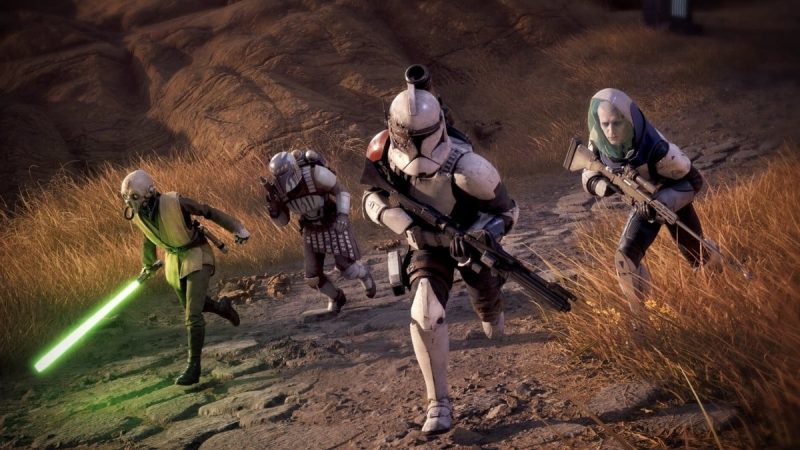
Are you tired of lag spikes and stuttering ruining your Star Wars Zero Company experience? Getting smooth, high-FPS gameplay isn't just about having a beefy rig—it's about dialing in the right settings. Let's walk through the best graphics options to maximize performance and keep the action fluid.
First, head to the Settings menu and click on the Graphics tab. We'll go through each key setting one by one.
**Display Mode:** Set this to Fullscreen. Borderless Windowed can cause input lag and frame drops, so Fullscreen is your best bet for pure performance.
**Resolution:** Keep this at your monitor's native resolution for the sharpest image. Lowering it will increase FPS, but it'll look blurry. If you're desperate for frames, you can drop it, but try the other settings first.
**V-Sync:** Turn this OFF. V-Sync caps your frame rate to your monitor's refresh rate and can introduce noticeable input lag. Disabling it will give you higher FPS and snappier controls.
**Frame Rate Limit:** Set this to your monitor's refresh rate (e.g., 144Hz = 144 FPS) or leave it uncapped if you want max FPS. Capping it can help with stability, but uncapped gives you the highest possible FPS.
**Graphics Preset:** Choose Custom. This lets you tweak individual settings instead of relying on a blanket preset that might not be optimal.
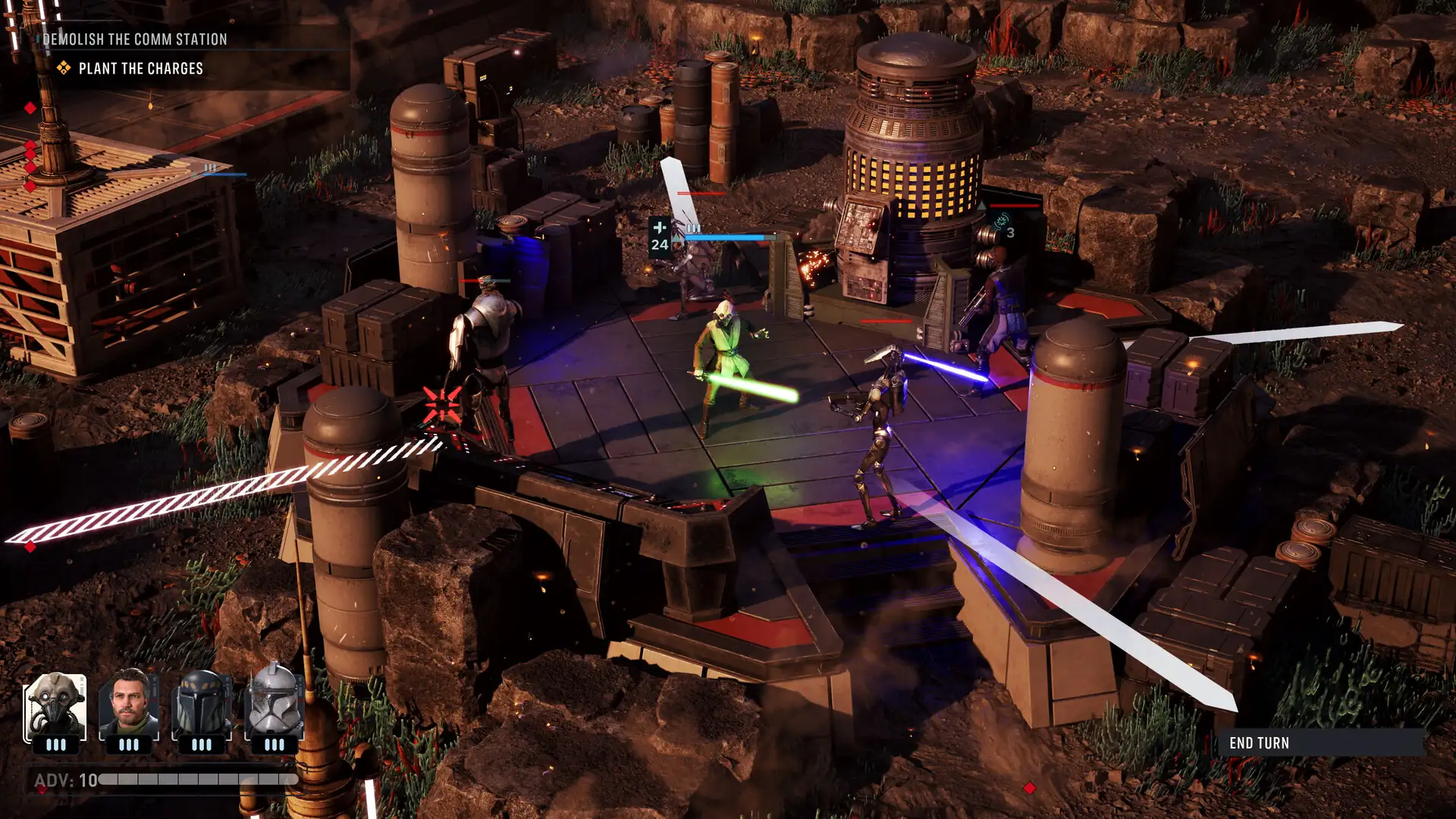
**Texture Quality:** Set this to High. Textures mostly affect VRAM usage, not FPS, as long as you have enough VRAM. If you're running out of VRAM (check with MSI Afterburner), drop it to Medium.
**Shadow Quality:** This is a big FPS hog. Set it to Medium or even Low. Shadows look nice, but they eat performance. Medium is a good balance, but Low will give you a solid FPS boost.
**Anti-Aliasing:** Turn this OFF. Anti-aliasing smooths jagged edges but is very taxing. If you really need it, use a lighter option like FXAA, but for max FPS, off is best.
**Post-Processing:** Set this to Low. This includes effects like bloom, motion blur, and depth of field. They're pretty, but they cost frames. Low or Off will help.
**Effects Quality:** Set this to Low. This controls particle effects, explosions, and other visual flair. Lowering it can significantly reduce stutter during intense combat.
**View Distance:** Set this to Medium. The view distance determines how far you can see objects. Medium is a good compromise between seeing enemies and keeping performance up.
**Ambient Occlusion:** Turn this OFF. This adds realistic shading but is very demanding. Off for performance.
**Motion Blur:** Turn this OFF. Not only does it save FPS, but it also makes the game look clearer during fast movements.
**VSync in Fullscreen:** Ensure this is also OFF.
After applying these settings, restart the game to make sure they take effect properly. You should see a noticeable jump in FPS and a smoother overall experience.
If you still have stuttering, make sure your GPU drivers are up to date, and close any background programs like Chrome or Discord that might be eating resources.
Did these settings work for you? Let me know in the comments below!
Comments (0)
Log in to join the discussion
Log InNo comments yet